S.I.M.P.L.E. Code Help
Overview
S.I.M.P.L.E. SD combines text-first and diagram-first modeling. Editor checks, diagram highlights, and node tooltips stay synchronized so you can spot issues quickly and fix them from either view.
Full Interface Tour
This section now includes a real captured interface view, followed by a labeled layout map from top toolbar to output/log surfaces.
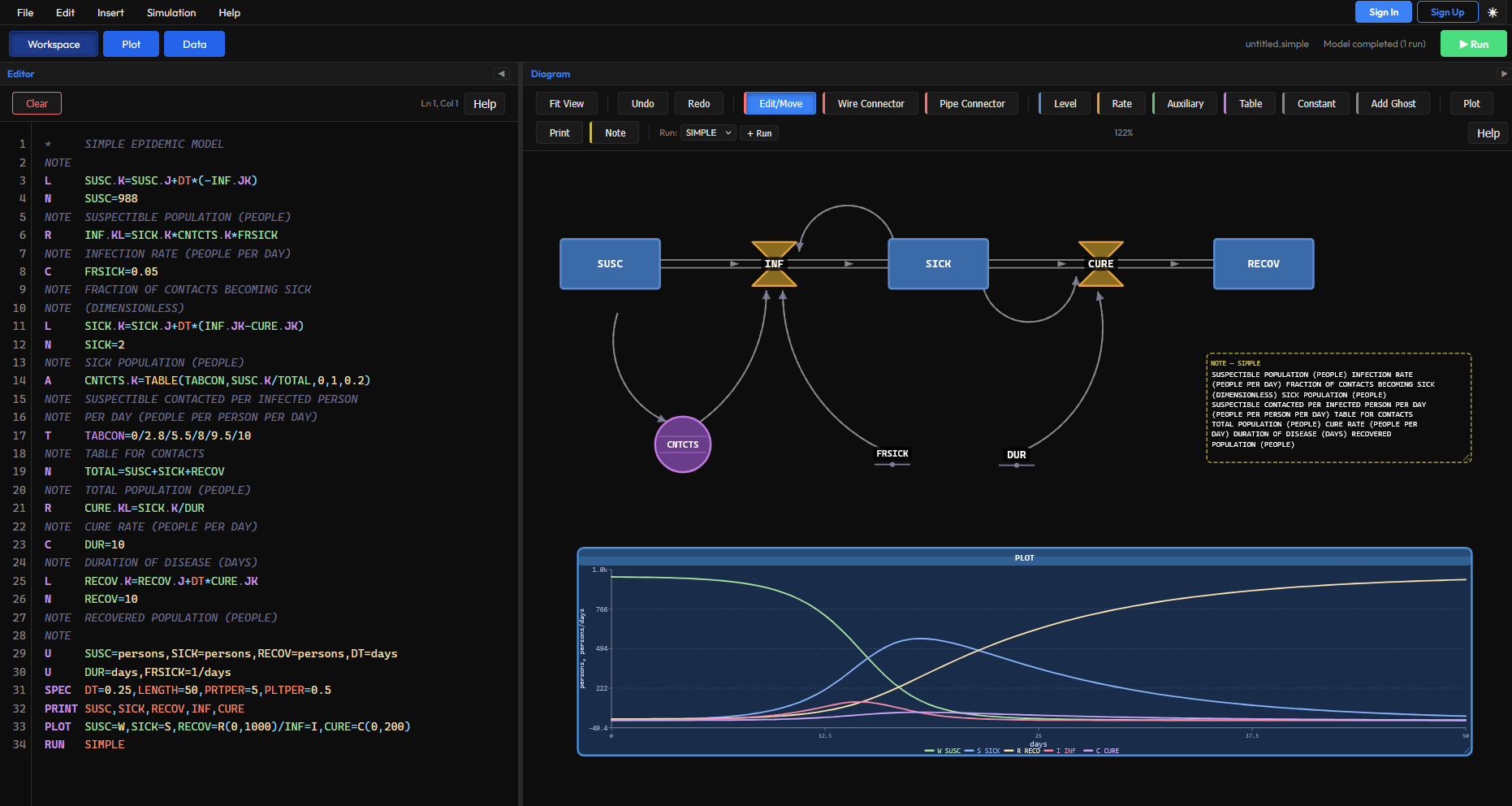
Unified Workspace Popup (Editor + Diagram + Plot + Data)
This single help popup combines the main work areas. Use the quick-jump buttons at the top or the table of contents to move between sections without opening separate dialogs.
- Editor catches syntax and variable issues with inline code markers.
- Diagram mirrors those issues with red node glow and per-node tooltip messages.
- Plot displays run-scoped time-series with chip toggles and scales.
- Data shows run output rows and CSV export from PRINT variables.
Complete Feature Index
This index lists every major interface area and what it controls.
| Area | Includes | Where To Find |
|---|---|---|
| Top Menu | File, Edit, Insert, Simulation, Help | App top bar |
| Workspace Tabs | Workspace, Plot, Data | Main content header |
| Editor Panel | Code input, code issue underlines, autocomplete, line/column status | Workspace left side |
| Diagram Panel | Node canvas, wire/pipe drawing, ghosts, notes, plot nodes | Workspace right side |
| Diagram Toolbar | Move/select/draw modes, node insert tools, run tools, macros | Diagram top row |
| Context Panel | Name, formula, units, description, apply/delete/hide | When a node is selected |
| Simulation Settings | DT, LENGTH, PRTPER, PLTPER, RUN, time unit, solver settings | Simulation > Settings |
| SimRun Replay | Animated diagram replay, dominant loop list, play/pause, slider scrub | Workspace header, next to Run |
| Plot Tab | Run dropdown, variable chips, line/letter display, hover tooltips | Main Plot tab |
| Data Tab | PRINT-based output table and CSV export | Main Data tab |
| Output Log | Parse results, code issue messages, runtime diagnostics | Status/log panel |
| Cloud/Auth | Sign in/up, cloud save/load model list | Top-right account controls |
| Help Popup | TOC, search filter, quick jumps, screenshots, references | Help menu and help buttons |
Top-to-Bottom Workflow
- Define equations in Editor or create nodes in Diagram toolbar.
- Use Context Panel Apply to write formulas, units, and descriptions.
- Fix any code issue underlines; affected nodes glow red on the diagram.
- Use Run for standard output, or SimRun for an animated diagram replay with dominant loop highlighting.
- Export CSV or diagram images as needed.
Editor + Code Checks
The editor enforces uppercase style, 72-character line checks, and live code diagnostics. Hover over underlined lines for the exact message.
When a code issue is found, related diagram nodes are highlighted and node tooltip messages are shown in red.
Diagram + Context Panel
The diagram toolbar is organized into labeled sections:
| Toolbar Section | Controls |
|---|---|
| Diagram View | Fit View, Zoom Out (−), Zoom In (+), zoom % display |
| Edit History | Undo (Ctrl+Z), Redo (Ctrl+Y) |
| Move Select and Draw | Move/Select (crosshair, default), Wire (dashed info link), Pipe (flow connector), Note (text annotation) |
| Primary Nodes | Level (rectangle), Rate (valve), Constant (dot + line), Auxiliary (circle) |
| Special Nodes | Array (stacked rectangles), Table (circle + data lines), Macro (dropdown: + New / list), Ghost (dropdown with variable search), Module scope pill when editing inside a module |
| Model Output | Plot (embedded chart), Print/Data (data table config) |
| Run | Run selector dropdown, + Run button, Hidden variables filter |
After successful wire or pipe creation, mode returns to Move automatically. Context panel fields sync both directions with editor code, including D descriptions and U units.
Auto-layout: Nodes without saved positions are placed automatically when the diagram opens. The engine groups nodes by subsystem (connected levels and their rates), positions each group, and arranges auxiliaries and constants around them.
Modules: Collapsed module boxes summarize a set of nodes in a standard square box. New modules default to no icon. Click a module to open its settings panel, or double-click it to enter the module's local diagram. Root-view module wires are white dotted proxy links and can be reshaped like other wires.
Draw Modes
| Mode | Button | Description |
|---|---|---|
| Move / Select | Crosshair (✛) | Default mode. Click to select, drag to reposition. Click empty space to deselect. |
| Wire | Dashed line | Click source node, then click target to create an information wire (dashed arrow). Adds the source variable to the target's formula dependencies. |
| Pipe | Solid valve line | Click a level, then a rate (or vice versa) to create a flow pipe (solid connector). Must connect Level ↔ Rate only. |
| Note | Note icon (📝) | Adds a new note annotation at the next open position on the canvas. Opens the note editor panel. |
| Lasso | Dashed rectangle | Click and drag to draw a selection rectangle. All nodes inside it are selected together. Selected nodes can be dragged as a group, hidden, or wrapped into a module box. |
Lasso Multi-Select
The Lasso tool lets you select multiple nodes at once by drawing a rectangle around them. In the root diagram, selecting two or more model nodes also enables a Create Module action.
- Select: Drag a rectangle around nodes to multi-select them (highlighted in blue).
- Group drag: After lasso selection, drag any selected node to move the whole group.
- Hide: Click the Hide button in the floating action bar to hide all selected nodes at once.
- Create Module: In the root view, click Create Module to wrap the selected model nodes in a standard square module box. New modules start with no icon, but you can pick one later in Module Settings.
- Open Module: Click a module box to open its settings panel. Double-click the box to enter its local diagram and edit the internal nodes directly.
- Module scope: When you are inside a module, the scope pill shows which module you are editing. Exit back to the root view to see collapsed module boxes and proxy links again.
- Escape: Press Escape to progressively: cancel active drag → clear selection → exit lasso mode.
Node Types + Shapes
Each variable type has a distinct diagram shape. Below is every node with its visual representation, editor prefix, and usage notes.
| Diagram Node | Mode | Shape | Notes |
|---|---|---|---|
| Level | L | Rectangle | Stock/accumulator with N initial value. Integrates flows over time. |
| Rate | R | Valve/Bowtie | Flow variable connected to levels by pipes. Units derived from connected level. |
| Auxiliary | A | Circle | Algebraic helper computed each time step. Uses .K timescript. |
| Table Lookup | A + T | Circle with lines | Auxiliary using TABLE/TABHL/TABXT/TABPL. Data from T line. |
| Constant | C | Dot + line | Scalar constant, no timescript needed. Can convert to table or array. |
| Supplementary | S | Dashed triangle | Output-only variable, computed but does not feed back. Uses .K timescript. |
| Array Level | L + FOR/I | Stacked rectangles | Multi-element stock with index variable and per-element formulas. |
| Ghost | Reference | Dashed copy | Diagram routing helper. No new equation; reduces long wires. |
| Plot Node | PLOT | Embedded chart | Run-scoped chart directly on the diagram canvas. |
| Note Node | O | Note card | Annotation backed by O NTITLE=...,NBODY=... in editor. |
Level — Rectangle
Levels (stocks) accumulate flows over time. They require an N initial value and are integrated using the DT time step. The level equation uses .J (previous) and .JK (incoming rates).
L POP.K=POP.J+DT*(BIRTH.JK-DEATH.JK)
N POP=1000
Rate — Valve / Bowtie
Rates define flow between levels. The valve shape has a triangular inlet and a rectangular body. Rates use .KL on the left side and .K on the right side references.
R BIRTH.KL=POP.K*BR
Auxiliary — Circle
Auxiliaries are algebraic computations evaluated each step. They receive information via wires and can feed into rates or other auxiliaries.
A RATIO.K=SICK.K/POP.K
Table Lookup — Circle with Lines
Table nodes are auxiliaries that use a TABLE function. The circle has horizontal data lines to distinguish it from plain auxiliaries. Data values come from a T line.
A EFFECT.K=TABLE(ETAB,INPUT.K,0,100,25)
T ETAB=0/0.2/0.6/0.9/1.0
Constant — Dot + Line
Constants are fixed numeric values that do not change over time. No timescript is needed. They appear as a small dot on a horizontal line.
C BR=0.03
Supplementary — Dashed Triangle
Supplementary variables are output-only computations. They are calculated each step but are not intended to feed back into the model. Useful for reporting derived quantities.
S OUT.K=POP.K*1000
Array Level — Stacked Rectangles
Array levels represent multi-element stocks. They use FOR to declare index variables and I for integer constants. Each element has its own equation expanded at parse time.
FOR AGE=1,3=YOUNG,ADULT,OLD
I NAGES=3
L POP.K(AGE)=POP.J(AGE)+DT*(IN.JK(AGE)-OUT.JK(AGE))
Ghost — Dashed Copy
Ghost nodes are diagram routing helpers. They duplicate the appearance of an existing variable so you can wire it closer to consumers without creating long crossing wires. No new equation is generated.
Plot Node — Embedded Chart
Plot nodes embed a live chart directly on the diagram canvas. They display the time series from the active run's PLOT statement. Click to configure variables, symbols, and scales.
Note Node — Annotation Card
Notes are free-form annotations for documenting parts of the model. They are backed by O statements in the editor with NTITLE and NBODY fields.
O NTITLE=INFECTION RATE,NBODY=PEOPLE PER DAY
Context Panel
The right-side context panel changes by selected element type. Click any node in the diagram to open it.
| Panel Mode | Key Fields | Apply Writes |
|---|---|---|
| Level Node | Type dropdown, Name, Formula, Units, Description (D), Initial Value (N) | L, N, U, D lines |
| Rate Node | Type dropdown, Name, Formula, Units (read-only — derived from connected level), Description | R, D lines (unit inferred from level) |
| Auxiliary Node | Type dropdown, Name, Formula, Units, Description | A, U, D lines |
| Constant Node | Type dropdown, Name, Formula (numeric value), Units, Description | C, U, D lines |
| Table Node | Name, TABLE formula, T data (slash-separated), chart preview, Array Const toggle | A + T lines (+ D if set) |
| Array Node | Size (2–20), Index variable, Element aliases, per-element tabs | FOR, I, expanded L/R per element |
| Ghost Node | Original variable (read-only), Description, Units, Wire consumer checkboxes | Wire routing only (no equation) |
| Plot Config | Variables (checkbox list), Symbol letters, Lo/Hi scale values per group | PLOT statement for active run |
| Print Config | Variables (checkbox list) | PRINT statement for active run |
| Note | NTITLE and NBODY text fields | O NTITLE=...,NBODY=... |
Common controls on all equation panels:
- Insert function bar — chip buttons organized by category: Ops (+−*/() DT TIME.K), Math (SQRT, ABS, …), Table (TABLE, TABHL, …), Logic (CLIP, SWITCH, …), Time (STEP, RAMP, PULSE), Delay (DELAY1, SMOOTH, …), plus any user macros.
- Connections list — shows inbound wires and pipes with direction, variable name, type, and a remove button.
- Hide in diagram — checkbox to visually hide the node while keeping the equation.
- Buttons — Apply (writes all changes to editor), Duplicate, Cancel, Delete.
Wires, Pipes + Ghosts
Connections link diagram nodes to represent dependencies. There are two types: information wires and flow pipes.
| Connection | Appearance | Valid Between | Effect |
|---|---|---|---|
| Wire | Dashed line with arrow | Any node → Any node | Adds source variable to target's formula dependencies |
| Pipe | Solid line, optionally with hollow circles | Level ↔ Rate only | Creates flow connection for integration; hollow circles are a diagram display toggle |
| Module proxy wire | White dotted line at the module box edge | Node ↔ Module or Module ↔ Module (root view) | Represents pending or collapsed module connections and can be curved like other wires |
- Creating wires: Select Wire mode, click the source node, then click the target. Or Shift+drag from source to target.
- Creating pipes: Select Pipe mode, click a level, then a rate (or vice versa).
- Module connections: In the root view, you can draw a wire or pipe between a node and a module box, or between two module boxes. That creates a pending module connection shown as a white dotted proxy wire.
- Outgoing module wires: Open the source module and use the source node's context panel to assign which internal node owns the outgoing module wire or pipe.
- Incoming module wires: Wires going into a module appear inside node panels as Module Imports. Click an import to insert that variable into a formula or initial-value field.
- Module-to-module wires: Assign the source side in the source module first. The destination module then exposes that assigned source node as an import in its internal node panels.
- Pipe display: Hover and click a pipe to open its settings, then switch between a plain material pipe and a pipe with hollow information markers.
- After creation, draw mode automatically returns to Move/Select.
- Removing: Select a node, open context panel, and use the remove button next to a connection.
- Ghosts are diagram routing helpers. They duplicate a node's appearance at a different position so wires don't cross the whole diagram. No equation is generated.
- Ghost nodes can retarget specific consumers — reassigning which consumers read from the ghost's position.
Notes + O Statement
Notes are diagram annotations with title and body, backed by O lines in the editor.
O NTITLE=INFECTION RATE,NBODY=PEOPLE PER DAY / CONTACT DYNAMICS
| Rule | Behavior |
|---|---|
| Both NTITLE and NBODY required | Code checks flag a missing note title or body |
| Comma separator required | Expected format: O NTITLE=...,NBODY=... |
| Run scoped | Notes are written into the active run section |
| Diagram edit sync | Double-click note opens panel and updates O line |
S.I.M.P.L.E. SD Extras
- D prefix: D VARNAME=DESCRIPTION with X continuation support.
- Context field: Variable Description now syncs with D lines.
- Tooltip format: description + unit + red error lines.
- Error glow: red glow on diagram nodes tied to code issues.
- Undefined equation glow: yellow glow on nodes without an equation, overriding the red error glow.
- Unit safety: shared U lines are preserved during apply/delete operations.
- Insert sync: toolbar and Insert menu include matching elements.
Language Reference
S.I.M.P.L.E. code uses uppercase card-image style statements. Keep statements within 72 characters, start the statement identifier in column 1, and use X for continuation.
*     MODEL TITLE
L     POP.K=POP.J+DT*(BIRTH.JK-DEATH.JK)
N     POP=1000
U     POP=PERSONS,DT=DAYS
D     POP=TOTAL POPULATION
Supported statement families include core equations, metadata cards, run controls, and macro cards:
| Family | Statements | Notes |
|---|---|---|
| Equations | L, R, A, C, N, T | Core model structure and values |
| Metadata | U, D, X | Units, descriptions, and continuation lines |
| Run cards | SPEC, PRINT, PLOT, RUN | Per-run execution and output configuration |
| Macros | MACRO, INTRN, MEND | Reusable equation templates expanded at parse time |
Timescripts
| Suffix | Meaning | Typical Use |
|---|---|---|
| .K | Current time value | Current level/aux states |
| .J | Previous time value | Level carry-forward term |
| .JK | Rate from J to K | Flow terms in level integration |
| .KL | Rate from K to L | Rate equation left-hand side |
L POP.K=POP.J+DT*(BIRTH.JK-DEATH.JK)
R BIRTH.KL=POP.K*BR
All Prefixes (L/R/A/C/N/T/S/U/D/O/X/FOR/I)
| Prefix | Meaning | Example |
|---|---|---|
| L | Level | L POP.K=POP.J+DT*(...) |
| R | Rate | R BIRTH.KL=POP.K*BR |
| A | Aux | A RATIO.K=SICK.K/POP.K |
| C | Const | C BR=0.03 |
| N | Initial | N POP=1000 |
| T | Table data | T TAB=0/1/2/3 |
| S | Supplementary | S OUT.K=POP.K*1000 |
| U | Units | U POP=PERSONS,BR=PERSONS/DAY |
| D | Description | D POP=TOTAL POPULATION |
| O | Note payload | O NTITLE=...,NBODY=... |
| NOTE | Comment line | NOTE TEXT COMMENT |
| X | Continuation | X CONTINUED TEXT... |
| FOR | Array index declaration | FOR AGE=1,3=YOUNG,ADULT,OLD |
| I | Integer/subscript constants | I NAGES=3 |
| SPEC/PRINT/PLOT/RUN | Run control/output cards | SPEC DT=1,... / PRINT ... |
| MACRO/INTRN/MEND | Macro blocks | MACRO MY(...) |
Prefix formatting rules:
- Prefix appears in column 1, followed by spaces, then statement text.
- Long U and D statements can wrap using one or more X lines.
- Variable names are normalized uppercase; unit text is normalized uppercase.
Functions + Operators
All 28 built-in functions. User-defined macros are also callable as functions.
| Category | Function | Signature |
|---|---|---|
| Math | SQRT | SQRT(x) |
| ABS | ABS(x) | |
| SIN | SIN(x) | |
| COS | COS(x) | |
| EXP | EXP(x) | |
| LOG / LOGN | LOG(x) — natural logarithm | |
| MAX | MAX(a, b) | |
| MIN | MIN(a, b) | |
| Table Lookup | TABLE | TABLE(name, input, lo, hi, step) |
| TABHL | TABHL(name, input, lo, hi, step) — clamp at bounds | |
| TABXT | TABXT(name, input, lo, hi, step) — extrapolate beyond bounds | |
| TABPL | TABPL(name, input, lo, hi, step) | |
| Logic / Conditional | CLIP | CLIP(a, b, x, y) — returns a if x≥y, else b |
| SWITCH | SWITCH(a, b, x) — returns a if x=0, else b | |
| FIFZE | FIFZE(a, b, x) — returns a if x=0, else b | |
| FIFGE | FIFGE(a, b, x, y) — returns a if x≥y, else b | |
| Delay / Smooth | DELAY1 | DELAY1(input, delay) — 1st-order material delay |
| DELAY3 | DELAY3(input, delay) — 3rd-order material delay | |
| DELAYP | DELAYP(input, delay, pipeline) — 3rd-order with pipeline output | |
| DLINF3 | DLINF3(input, delay) — 3rd-order information delay | |
| SMOOTH | SMOOTH(input, delay) — exponential smoothing (1st-order info delay) | |
| Time / Input | STEP | STEP(height, stime) — step input at time stime |
| RAMP | RAMP(slope, stime) — ramp starting at stime | |
| PULSE | PULSE(height, first, interval) — repeating pulse train | |
| Random | NOISE | NOISE() — uniform random [−0.5, 0.5] |
| NORMRN | NORMRN(mean, stddev) — normal random | |
| Sampling | SAMPLE | SAMPLE(input, interval, start) — sample-and-hold |
| Array | SUM | SUM(array) — sum all elements |
| SUMV | SUMV(array, from, to) — sum range | |
| PRDV | PRDV(array, from, to) — product of range | |
| SCLPRD | SCLPRD(a, b, from, to) — scalar product | |
| SHIFTC / SHIFTL | SHIFTC(a, shift), SHIFTL(a, shift) — circular/linear shift |
Operators: + - * / and exponentiation **. Precedence: ** first, then */÷, then +−. Use parentheses to override.
Function Details (from the S.I.M.P.L.E. code manual)
Table Lookups: Express arbitrary relationships between variables using tabulated data points with linear interpolation.
| Function | Out of Range Behavior |
|---|---|
| TABLE | Uses extreme value + warning message |
| TABHL | Uses extreme value silently (no warning) |
| TABXT | Extrapolates from last two points (non-horizontal asymptote) |
| TABPL | Cubic spline interpolation between points. T data needs extra zeros. |
A EFFECT.K=TABLE(ETAB,INPUT.K,0,100,25)
T ETAB=0.0/0.3/0.7/0.9/1.0
Delay / Smooth Functions: Model information and material delays in the system.
| Function | Type | Description |
|---|---|---|
| DELAY1 | 1st-order material | First-order exponential delay. Output approaches input with single time constant. |
| DELAY3 | 3rd-order material | Third-order delay. S-shaped response, more realistic for physical processes. |
| DELAYP | 3rd-order + pipeline | Like DELAY3 but also outputs the total material in the pipeline. |
| DLINF3 | 3rd-order information | Information smoothing over three stages. |
| SMOOTH | 1st-order information | Exponential smoothing: SMOOTH.K = SMOOTH.J + DT*(INPUT.JK − SMOOTH.J)/DELAY |
Test Input Functions: Generate time-dependent inputs for testing model behavior.
| Function | Output Shape | Notes |
|---|---|---|
| STEP(H, T) | 0 before time T, then H | Sudden one-time change. Both H and T can be variables. |
| RAMP(S, T) | 0 before time T, then accumulating slope S | Linear increase starting at time T. |
| PULSE(H, F, I) | Pulse of height H, width DT, starting at F, repeating every I | For impulses of area P, use PULSE(P/DT, F, I). |
| NOISE() | Uniform random [−0.5, +0.5] | Pseudo-random. Same sequence each run unless seed changed. |
| NORMRN(M, S) | Normal distribution with mean M, stddev S | Max deviation ≈ 2.4 standard deviations. |
| SAMPLE(X, I, S) | Sample-and-hold: captures X every I time units | Returns initial value S until first sample time. |
Trigonometric / Math: Standard mathematical functions. EXP and LOGN can compute arbitrary powers: A^B = EXP(B*LOGN(A)).
Multi-Run Behavior
Models can contain multiple runs (scenarios). The first run is usually the baseline; later runs override only changed statements.
| Action | Result |
|---|---|
| Select run dropdown | Context edits target that run section in the editor |
| + Run | Creates a new run section for scenario overrides |
| Run model | All run sections execute and populate Plot/Data tabs |
| Settings apply | SPEC settings are synchronized across runs |
* BASE RUN
SPEC  DT=1,LENGTH=100,PRTPER=1,PLTPER=1
RUN   BASE

* ALT RUN
R BR.KL=POP.K*0.04
RUN   HIGH BIRTH
Macros
Macros are reusable equation templates. They are defined at the top of the editor and expanded into normal equations when called.
MACRO MYSMOOTH(INPUT,DELAY)
A MYSMOOTH.K=SMOOTH(INPUT.K,DELAY)
MEND
Macro workflow:
- Create/edit from the Macro dropdown in the diagram toolbar or directly in code.
- Use INTRN for helper names that should be unique for each expansion.
- Calls must pass the correct number of arguments.
- Macros do not appear as standalone diagram nodes; expanded variables do.
Simulation Settings
Use Settings to configure DT, LENGTH, PRTPER, PLTPER, RUN name, time unit, and integration method (Euler or RK3 with REL_ERR / ABS_ERR).
The Workspace header has two run controls: Run executes the model and updates Plot/Data tabs, while SimRun executes the same model and then opens an animated replay window.
SimRun Replay
SimRun opens a replay window after the model finishes, then animates the diagram slowly so you can see which pipes, rates, and information links are most active over time.
Use the red ▶ SimRun button beside ▶ Run in the Workspace header. SimRun runs the model first, then uses the selected Plot run when available; otherwise it replays the first completed run.
- Pipes and wires get wider as relative flow strength increases.
- Opacity and glow also respond to the same frame, so weak links fade back while strong links stand out.
- The right panel lists the strongest detected feedback loops and highlights the selected loop in orange.
- The play button, restart button, and slider let you either watch the replay or scrub through it manually.
Plot Tab + Plot Nodes
Run dropdown shows runs with PLOT statements. Diagram plot nodes show run-specific series directly on canvas.
Plot controls include line mode, letter markers, variable chips, and hover readouts. Variables with different magnitudes are normalized by group so traces stay visible.
PLOT Syntax
PLOT VAR=CHAR(lo,hi)/VAR2=C2(*,*),VAR3=C3(*,*)
=CHAR— assign a single letter symbol that marks the trace (e.g.POP=P).(lo,hi)— set the Y-axis bounds for this variable. Use*for auto-scale./— separates variables that use different Y-axis scales.,— groups variables on the same Y-axis scale.
PLOT POP=P(0,5000)/BIRTH=B(*,*),DEATH=D(*,*)
Above: POP on its own scale 0–5000, BIRTH and DEATH share an auto-scaled axis. Only runs containing a PLOT statement appear in the Plot run dropdown.
Data Tab + CSV Export
Data table includes runs with PRINT statements. Use CSV button to export full output for spreadsheet analysis.
Rows are spaced by PRTPER from SPEC. If PRTPER=0, no print output is produced, so the Data tab stays empty for that run.
PRINT POP,BIRTH,DEATH
Only runs containing a PRINT statement appear in the Data output and CSV export.
Common Errors
| Area | Typical Messages | How to Fix |
|---|---|---|
| Equations | Undefined variable, missing suffix, malformed assignment | Check spelling, suffixes (.K/.J/.JK/.KL), and equation syntax |
| Units | Invalid U entries, inconsistent dimensions | Use U NAME=UNIT format and correct each variable entry |
| Descriptions | D line must be D VARNAME=DESCRIPTION | Keep D format exact; use X lines for long text |
| Macros | NO MEND CARD, wrong argument count | Close each MACRO with MEND and match call arguments |
| Run cards | No or incomplete SPEC card | Provide DT, LENGTH, PRTPER, and PLTPER |
Code issues are shown in three places at once: editor underline, red node glow, and node tooltip error lines.
Model Examples
Starter examples you can paste and run:
Quick Start
* QUICK START
L POP.K=POP.J+DT*(BIRTH.JK-DEATH.JK)
R BIRTH.KL=POP.K*BR
R DEATH.KL=POP.K*DR
C BR=0.03
C DR=0.02
N POP=1000
U DT=YEAR,POP=PERSONS,BIRTH=PERSONS/YEAR,DEATH=PERSONS/YEAR,BR=1/YEAR,
X DR=1/YEAR
D POP=TOTAL POPULATION
SPEC  DT=1,LENGTH=50,PRTPER=1,PLTPER=1
PRINT POP,BIRTH,DEATH
PLOT  POP=P(0,3000)/BIRTH=B(0,200)/DEATH=D(0,200)
RUN   BASE
Array Cohort Example
This shows a three-element aging chain with one plotted line per array element.
* ARRAY COHORT MODEL
FOR AGE=1,3=YOUNG,ADULT,OLD
L POPULATION.K(AGE)=POPULATION.J(AGE)+DT*(IN.JK(AGE)-OUT.JK(AGE))
R IN.KL(AGE)=SWITCH(BIRTHS,OUT.JK(AGE-1),AGE-1)
R OUT.KL(AGE)=POPULATION.K(AGE)/RESIDENCE(AGE)
A TOTALPOP.K=SUM(POPULATION.K)
C BIRTHS=12
C RESIDENCE(1)=8
C RESIDENCE(2)=22
C RESIDENCE(3)=18
N POPULATION(1)=120
N POPULATION(2)=260
N POPULATION(3)=90
U DT=YEAR,POPULATION=PEOPLE,TOTALPOP=PEOPLE,BIRTHS=PEOPLE/YEAR,
X IN=PEOPLE/YEAR,OUT=PEOPLE/YEAR,RESIDENCE=YEAR
SPEC  DT=1,LENGTH=40,PRTPER=1,PLTPER=1
PRINT TOTALPOP,POPULATION(1),POPULATION(2),POPULATION(3)
PLOT  POPULATION(1)=A,POPULATION(2)=B,POPULATION(3)=C/TOTALPOP=T
RUN   BASE
Macro Smoothing Example
This defines a reusable smoothing macro, then calls it from a normal auxiliary equation.
MACRO MYSMOOTH(INPUT,DELAY)
A MYSMOOTH.K=SMOOTH(INPUT.K,DELAY)
MEND

* MACRO EXAMPLE
A DEMAND.K=STEP(100,5)
A SMOOTHED.K=MYSMOOTH(DEMAND.K,4)
SPEC  DT=0.5,LENGTH=30,PRTPER=1,PLTPER=1
PRINT DEMAND,SMOOTHED
PLOT  DEMAND=D(0,120)/SMOOTHED=S(0,120)
RUN   BASE
Tools Overview
The Tools menu provides four analysis tools that help you understand and validate your model's structure and behavior. All tools run against the current editor content.
Dimensional Analysis
Dimensional Analysis checks that your model's unit declarations are self-consistent. It uses U line declarations and propagates units through equations to find mismatches.
Open via Tools → Dimensional Analysis.
How It Works
- Parses the current editor source to collect all equations.
- Reads declared units from U lines (e.g., U POP=PERSONS,BR=1/YEAR).
- Propagates inferred units through equation dependencies.
- Checks unit consistency for every equation and flags mismatches.
Output Sections
| Section | Shows |
|---|---|
| Summary | Count of declared units, inferred units, equations checked, pass/warnings |
| Declared Units | Variables with explicit U line declarations and their types |
| Inferred Units | Variables whose units were propagated from equation dependencies |
| No Units | Variables without any unit information (declared or inferred) |
| Warnings | Unit mismatches found during consistency checking (red border) |
Sensitivity Analysis
Sensitivity Analysis measures how much a chosen output variable responds to changes in a parameter. It runs three simulations: base, perturbed up, and perturbed down.
Open via Tools → Sensitivity Analysis.
Configuration
| Setting | Description |
|---|---|
| Parameter to perturb | Dropdown of all constants (C) and initial values (N) in the model |
| Output variable | Dropdown of all levels (L), rates (R), auxiliaries (A), and supplementaries (S) |
| Perturbation % | The percentage to vary the parameter (1–100%, default 10%) |
How It Works
- Runs the base simulation with the current parameter value.
- Runs a +% simulation with the parameter increased by the perturbation amount.
- Runs a −% simulation with the parameter decreased by the perturbation amount.
- Shows a trajectory chart comparing all three runs over time.
- Calculates elasticity at each time step: (% change in output) / (% change in parameter).
Reading Elasticity
| Elasticity | Interpretation |
|---|---|
| |E| < 0.5 | Output is insensitive to the parameter — small effect |
| |E| ≈ 1.0 | Output changes proportionally — linear relationship |
| |E| > 1.0 | Output is highly sensitive — amplified response, leverage point |
Feedback Loops
Feedback Loops identifies all circular causal chains in your model. Each loop is classified as Reinforcing (positive feedback) or Balancing (negative feedback) based on link polarities.
Open via Tools → Feedback Loops.
How It Works
- Builds an adjacency graph from all equation dependencies (excluding N initial-value equations).
- Runs an async depth-first search (chunked for responsiveness) to find cycles up to 12 variables long.
- Determines link polarity by recursively propagating signs through the parsed formula of each equation (handling +, -, unary minus, multiplication/division by constants, stock inflows/outflows, MAX/MIN, resolvable powers, and table lookups based on actual table data). When a term can't be pinned down exactly (e.g. a product of two variables, or a non-monotonic function), it falls back to the standard causal-loop convention of assuming a typical positive value, so every link always resolves to + or -.
- Classifies each loop: an even number of negative links → Reinforcing (R); an odd number → Balancing (B).
- Displays up to 2000 unique loops with colored arrows showing each link's polarity.
Understanding Loop Polarity
| Symbol | Meaning |
|---|---|
| →(+) | Positive link: as the source increases, the target increases (or decreases together) |
| →(−) | Negative link: as the source increases, the target decreases (appears in denominator or subtracted) |
| R | Reinforcing: even number of negative links → self-amplifying feedback |
| B | Balancing: odd number of negative links → self-correcting feedback |
- Use the filter dropdown to show only loops containing a specific variable.
- Maximum loop length is 12 variables. Maximum displayed loops is 2000.
- Progress is shown during search: "X found so far (Y% scanned)".
Causes Tree
The Causes Tree traces all upstream dependencies for a chosen variable, displayed as an SVG tree diagram using the same node shapes as the main diagram.
Open via Tools → Causes Tree.
Configuration
| Setting | Description |
|---|---|
| Select a variable | Dropdown of all model variables (excluding N initial values) |
| Depth | How many levels deep to trace (2–6, default 4) |
Tree Features
- Node shapes match diagram: Levels = rectangles, Rates = valves, Auxiliaries = circles, Constants = dot+line.
- Circular references: Marked with a dashed border and ↻ symbol to prevent infinite recursion.
- Zoom controls: Use +, −, and ⊙ (reset) buttons to zoom the tree view.
- Theme-aware: Tree adjusts to light or dark mode automatically.
Export Diagram
Export the current diagram to an image file via File → Export Diagram.
| Format | Best For | Details |
|---|---|---|
| SVG | Documentation, editing | Scalable vector format. Inline styles included. Can be opened in design tools for further editing. |
| PNG | Presentations, sharing | Rendered at 2× resolution for high-DPI displays. Background color matches your theme. |
| Printing, reports | Single-page PDF with embedded image. Uses the diagram's bounding box as page size. |
All exports are auto-cropped to the diagram content with padding. Hidden nodes are excluded. The file downloads automatically to your Downloads folder.
Cloud Save / Load
S.I.M.P.L.E. SD supports cloud storage for your models. Sign in with email/password or Google to save and access models from any device.
Authentication
- Sign In / Sign Up: Use the top-right button or the welcome screen. Supports email+password and Google OAuth.
- Once signed in, the button changes to show your account with Save and My Models options.
Cloud Operations
| Action | How | Description |
|---|---|---|
| Save | Ctrl+S or File → Save | Quick save to cloud. If no cloud document exists yet, opens Save As. |
| Save As | Ctrl+Shift+S or File → Save As | Save with a new name. Enter a model name in the dialog and confirm. |
| Open | Ctrl+O or File → Open | Opens My Models list showing all saved models, sorted by last modified date. |
| Rename | File → Rename | Rename the current cloud model file (copies to new name, deletes old). |
| Delete | My Models list | Each model in the list has a delete button for removing unwanted models. |
Autocomplete
The editor provides live autocomplete suggestions as you type. Suggestions include variable names, system constants, functions, keywords, and timescripts.
Suggestion Categories
| Icon | Category | Examples |
|---|---|---|
| V | User variable | POP, BIRTH, RATIO — names from your model equations |
| S | System constant | DT, TIME, LENGTH, PRTPER, PLTPER |
| F | Function | SQRT, TABLE, CLIP, DELAY1, STEP, PULSE, etc. (opens parenthesis on accept) |
| K | Keyword | L, R, A, C, N, S, T, U, SPEC, PRINT, PLOT, RUN, NOTE, MACRO |
| T | Timescript | .K, .J, .KL, .JK — appears after typing a dot (.) |
Usage
- Start typing to see suggestions — minimum 1 character triggers the popup.
- Use ↑/↓ arrow keys to navigate the list.
- Press Tab or Enter to accept the highlighted suggestion.
- Press Escape to dismiss the popup.
- After a dot (.), timescript suggestions appear ranked by variable type (e.g., levels show .K/.J first, rates show .KL first).
- Accepting a function inserts the name followed by an opening parenthesis.
Shortcuts + Tips
| Shortcut | Action |
|---|---|
| Ctrl+Enter | Run model |
| Space (inside SimRun) | Play / pause replay |
| Ctrl+Z | Undo |
| Ctrl+Y / Ctrl+Shift+Z | Redo |
| Ctrl+N | New model |
| Ctrl+O | Open model (cloud load) |
| Ctrl+S | Save |
| Ctrl+Shift+S | Save As |
| Tab | Insert 6 spaces / accept autocomplete |
| Enter | Accept autocomplete selection |
| Escape | Close dialog or SimRun / cancel draw mode / deselect node / dismiss autocomplete |
| Delete | Delete selected diagram element |
| Shift+Drag | Quick wire placement between nodes |
| ↑ / ↓ | Navigate autocomplete suggestions |
Editor Tips
- Use ghost variables to reduce long wires across the diagram.
- Use Fit View when the diagram pans far from center.
- Autocomplete suggestions appear as you type variable and function names. Timescript suggestions appear after a dot.
- The column-72 ruler (dashed red line) marks the S.I.M.P.L.E. code line length limit. Use X continuation lines for longer statements.
- Code issues appear in three synchronized places: editor underline, diagram node glow, and node tooltip.
- The editor enforces uppercase style for all code. Variable names and units are normalized automatically.
Diagram Tips
- Double-click a node to open its context panel for editing.
- Right-click a node to access quick actions.
- Use the Lasso tool to select and move or hide multiple nodes at once.
- Zoom with the +/− buttons or fit the entire model with Fit View.
- Wires show information flow (dashed lines). Pipes show material flow (solid lines).
- Hidden nodes can be restored from the "Hidden" dropdown in the Run toolbar section.
Model Tips
- A model needs at minimum: one equation, a SPEC card, and a RUN card.
- Add U declarations for unit checking. Use D declarations for documentation.
- Use Sensitivity Analysis to find which parameters have the most impact.
- Use Feedback Loops to understand the causal structure of your model.
- Use Dimensional Analysis to catch unit errors early.
- Save frequently to the cloud. Your diagram layout is preserved with the model.